I say you can get up to 10 years of useful life out of a computer!
I know. You think I'm nuts. Or a luddite. A 30+ year computer geek regularly using a
Mac G4 450MHz tower and a
Compaq 1.5GHz Pentium 4 tower in the year 2009?!
They still work for me because, with a few techniques, you can squeeze
5-10 years of real, genuine usefulness out of a computer, and another 5 years of limited duty use before all the thing is good for is recycling or reuse.
The most important technique is to
resist the urge to upgrade just to have the latest, greatest. I think it's more cool to squeeze life out of a computer than to get the latest, greatest. It's definitely cheaper and less wasteful.
In the interests of full disclosure :) I
do have a
2.2GHz duo-core MacBook as my main computer but I also plan to keep it another several years. The iBook G3/800 that preceded it lasted me 6 years before it broke.
The Mac G4
I got the G4 in
1999, factory refurbished to save a little money, and it has been an excellent machine. (picture from
http://www.adoptamac.com/ where you can buy these older Macs)
It holds all my music, many photos, and lots of other data on an external 300G drive. I've used it for web development, iPod updating, productivity, web surfing, movie editing, picture editing, and lots of other stuff I've forgotten.
What works and what doesn't
It is running an older Mac OS X operating system, Panther (10.4), iLife, the latest iTunes, the latest version of Firefox, an older Photoshop 7, Microsoft Office for Mac, and other stuff. Most of this stuff works fairly well.
Firefox is starting to get pretty
slow, particularly client side code (AJAX).
OpenOffice 3 is very nearly
unusable because it takes SO long to load.
Ripping CDs takes forever and with USB version 1, photo loads off the camera take a long time, too.
Software
Sometimes if you can get away with
older software, like my old Microsoft Office X, it will continue to run fairly well. Sometimes it is unavoidable. If you're a gamer, none of this applies, obviously, because you always have to have the very latest, fastest machine to run the latest, best games. Even if you surf the web, having the latest feature-rich browser can really tax your old computer.
Some browsers are more efficient than others. Firefox tends to be a bit of a pig where Safari is less so. I haven't played with Opera in awhile but when I first used it I remember it being quite zippy.
Memory
The main key to the life I've gotten out of this machine is
memory upgrade. Once I upgraded to 768M of memory, it worked pretty well until probably 2007 --
8 years. But the memory is speed limited, too. It would probably work a little faster loading larger software images like OpenOffice and Firefox if I maxed out the memory.
CPU
But it is still very CPU bound as evidenced by CD imports. For this, it may be worth trying to find a used
Sonnet (or similar)
accelerator card on that famous auction site. Even upgrading to 800MHz might help a little, but the computer's
bus is still stuck at a
slow speed and there's nothing you can do about that.
Other Hardware
I finally got around to installing a
CD-R in the machine, something I'd been wanting for a long time so I could burn my music, photos, etc. I got a used one off of that auction site for something like $20 shipped.
If you play some older games and find the
video card lacking, you could upgrade that too.
And it is possible to find
USB 2 cards for the machine. I would suggest buying older, used versions of this hardware to keep costs down.
For any Mac you might want to
check this website for tips on getting more life out of the machine:
http://www.xlr8yourmac.com/
Operating System
You might consider installing a different, somewhat
more efficient operating system, particularly
YellowDog Linux. You can select what packages are or aren't installed. You can even choose to disable the graphical interface.
Mind you, I'm not saying ot use an outdated operating system that is no longer supported with security patches. That is a recipe for disaster. I am saying to use a modern operating system that is more efficient.
Narrow Purpose
Once you get to a point where the system is really unable to do much of anything, you might find a very narrow use for it. For example, I could turn my G4 into a
music server so that it's only purpose is to deliver music to my stereo. Or, if I ever get around to building that
homebrew CNC machine, it could be used to run the control software. Or perhaps I could turn it into a firewall or a wireless access point.
 The Pentium 4
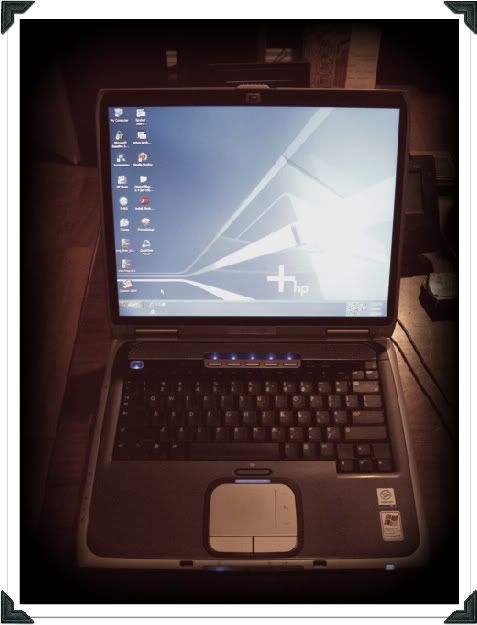
I got this computer for $5 at a yard sale. It's a Compaq Presario 5000, 1.5GHz P4. It had 256MB of memory and came with XP. I loaded it up with OpenOffice, Firefox, IE8, and few other goodies.
Memory
All of this worked pretty slowly. Until I added
512MB of memory for a total cost of $26 shipped. Now it is tolerably fast running all the above software. I'm also using it to run LTspice, which is software for designing and simulating electronic circuits. This software is pretty lightweight and speedy.
I used to use the Pentium III as a software development station for one of my
robots so I will transfer that software to the new machine. If I go back to managing my
GeoCaching hobby on Windows, I'll transfer the data from my Pentium III and reinstall the necessary software.
I anticipate this machine will be pretty useful for some time to come.
CPU
Unlike a Mac, with a PC, options are a bit more open for upgrades. I can
upgrade the motherboard and CPU. I'd tend to want to buy used because I could get a motherboard that's a few years old much cheaper than a new one.
Other Hardware
Video card upgrades are easy enough as well but I've pretty much given up playing new games and I think this system will do fine running my
older games should I ever bother to load them up again.
Operating System

If it comes down to it, I may end up loading Linux or one of the BSD variants. But right now I am running some Windows specific software so XP does the trick. I wouldn't even consider Vista on any but the newest systems due to its tremendous CPU and memory requirements.
Reaching the End
At some point, you just have to throw in the towel and admit that your machine is fundamentally too slow and no amount of upgrades or leaner software will help. Throwing more money at it doesn't make sense.
When you finally reach the real end of usefulness for the computer, now what? For example, this Pentium III is just too slow to tolerate. I could load
Linux but I don't really have any genuine use for it. I will look into recycling or else I will donate it. I don't have any info or experience recycling computers yet but I'll do an article on this when I learn more.

I used to have three Mac
PowerMac 7500s with YellowDog Linux and really all they did was run Seti@Home. Slowly. :) (Pictured is a PowerMac 7200, image from
www.forevermac.com) I had upgraded the CPU daughter cards in each one from a somewhat newer PowerMac.
One of them was a file server and one was a print server. It was tough finding decent sized SCSI disks, so the file server thing didn't work too well. Finally, I didn't really need file or print servers anymore, so I donated one to an art gallery after loading it with some older graphics editing / publishing software. The other two went to Goodwill in hopes someone would be able to do something with them.
Meanwhile I still have my rugged old
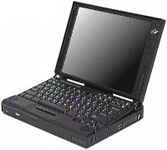
IBM Thinkpad 760EL (133MHz Pentium II MMX, picture from
thinkwiki.org) that I bought over 10 years ago--it was already obsolete at the time. I originally bought it as an information security laptop.
All I needed was command line Linux so I loaded RedHat 7 and some security tools and after upgrading it to 48M of ram (!) it was a useful little tool for several years and it performed fine.
It also has a Windows 95 disk (you can easily swap drives on this model) and now the only use it sees is to run an old version of GPS navigation software connected to a Lowrance GPS of 1997 vintage. It's such a solidly built machine I think it's perfect to ride in a Jeep but it's not terribly useful for much else.
You can always convert your machine for another purpose, too, like the ol'
Mac Aquarium.
Update, 2012
I finally retired the G4 from active duty, upgraded the MacBook hard drive and transferred all my songs and pictures over to it.
The P4 is also out to pasture, replaced by a used Dell Optiplex GX520 which runs a dual core 2.8GHz Pentium D, a decent speed upgrade at a reasonably low cost (not as low as the $5 yard sale P4).
We just traded out my wife's MacBook for a newer model that could run OSX Lion a year ago. Now that Mountain Lion is out, my MacBook is unsupported and hers may be as well. I never did update to Lion so I now have to call Apple support to do that so I can at least use iCloud on my phone.
I suppose with these old computers, it's always a game of balancing cost of upgrades with modern feature support, speed, etc. It's really difficult not to fill the landfills with e-waste. Our technology economy pretty much rewards doing so.

 I always seem to have several repair projects going at once. These things take time, so as I take a break from one thing I start up on something new, or continue with another project. But always there's little nuts and bolts and pieces and whatnot that I invariably lose.